
The upgrade finishes. Green tick, no warnings, everything looks fine. Then you open the shop and the size chart has vanished from every product page, or the Module Manager loads as a white rectangle, or a customer emails to say the pay button does nothing.
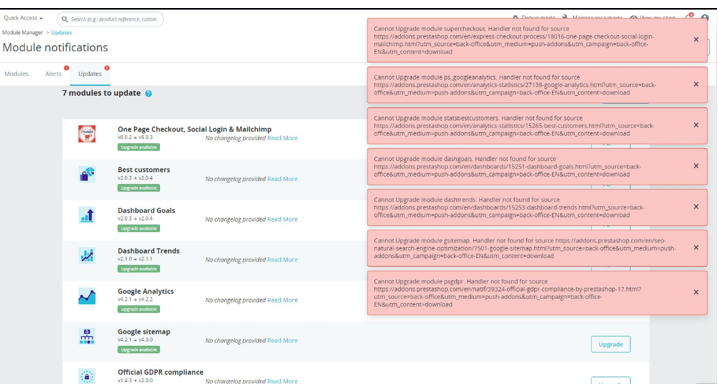
We run into this constantly on stores coming off PrestaShop 1.7 onto 8 or 9, and the reason is dull rather than dramatic. An upgrade updates PrestaShop. It doesn’t rewrite the thirty-odd pieces of third-party code, theme edits and overrides your shop accumulated across six years of trading.
Which makes PrestaShop module compatibility the actual work of an upgrade. The version bump is the easy half.
A module can run flawlessly for four years on 1.7 and die on the first request after you move to 8, because somewhere inside it sits a call to a class, hook or method that no longer exists in the form it expects.
Either way you can track it down, as long as you stop assuming PrestaShop broke, because it almost never did.
1.0 Why PrestaShop Modules Break After an Upgrade
There’s no single culprit, but on a real store the cause nearly always lands in one of five places.
1.1 Outdated module code
Something written for 1.7 may lean on APIs that PrestaShop 8 and 9 no longer support. Here’s the trap, though, it’ll still install, with a tidy configuration screen and no red banners anywhere. Then one function fails six weeks later, the first time a customer triggers that path.
So “it installed” tells you nothing. Use the module on the target version, in the place it does its job.
1.2 Changes to hooks and core methods
Modules hang their functionality off hooks. Change or delete a hook, and whatever the module rendered there stops rendering.
The nastier case is a module calling a core class or method that’s gone. PrestaShop 9 dropped a fair amount, the admin login hooks, the legacy product-page hooks, the PrestaShopAutoload class. Older code still asking for Tools::jsonEncode() hits a wall too, since that wrapper went in PrestaShop 8.
PHP doesn’t degrade politely there. It throws, and the request stops where it stands.
So severity swings wildly depending on how the module used the thing that changed. One missing block on a category page, or a dead checkout, same root cause, very different afternoon.
1.3 PHP version changes
Upgrading PrestaShop usually means upgrading PHP too, and that second change gets forgotten in the planning.
Code that ran quietly on PHP 7.4 throws TypeErrors and fatals on 8.x. The usual suspects turn up again and again: a nullable ID passed to a constructor expecting an int, pSQL() handed something that isn’t a string, class properties nobody declared, a function retired two PHP releases ago.
When you look at PrestaShop PHP compatibility, check both ends. What PHP does your target PrestaShop release support, and what does the module claim? Those answers don’t always overlap the way you’d hope.
1.4 Overrides
Overrides get their own section for one reason: they outlive the module that installed them.
Picture the sequence. A module ships an override for a core class, so PrestaShop copies the file into /override/ at install time. Months later somebody disables the module. The file stays, because disabling only flips a flag in ps_module, and after the upgrade it’s extending a class whose method signatures moved.
You end up with a module that “can’t possibly be the problem, it’s been off since March” sitting at the centre of the problem.
Two modules fighting over the same class cause trouble too, since only one file can live at override/classes/Cart.php. Each works alone. Together, one silently loses.
On any store older than a couple of years, reading that directory belongs in every investigation.
1.5 Theme and module conflicts
Not everything that breaks is PHP.
A module might depend on a specific template file, a CSS class, a JavaScript function, or a hook sitting in a particular spot in the layout. Change the theme during the upgrade and the module’s PHP runs perfectly while rendering nothing anyone can see.
Checkout, navigation, product customization and page-builder modules get hit hardest, being the ones most entangled with the theme to begin with.
2.0 PrestaShop 8 vs PrestaShop 9: Does Module Compatibility Change?
Yes, module compatibility changes when store owners upgrade from Prestashop 8 to 9, and breaks more than most people expect. Passing on PrestaShop 8 buys no guarantee whatsoever about PrestaShop 9. The core changed again, the PHP requirements shifted, and 9 runs on Symfony 6.4 where 8 sat on Symfony 4.4, two framework generations in one step.
Anything reaching into Symfony directly- services, controllers, dependency injection- feels that jump immediately.
2.1 PrestaShop 8 module compatibility
For a PrestaShop 8 module compatibility check, begin with whatever the developer publishes. Supported versions, changelog, release notes.
Then go past the version number, because that’s a claim rather than a test result. Find out whether the module:
- Uses core overrides
- Depends on specific hooks
- Modifies checkout or cart functionality
- Adds custom controllers
- Changes database structures
- Includes theme-specific templates
- Requires particular PHP extensions
- Uses older PrestaShop APIs
Anything originally built for 1.7 usually needs a proper updated release before it earns a place on a PrestaShop 8 store.
2.2 PrestaShop 9 module compatibility
For PrestaShop 9 module compatibility, pin down the exact 9.x release you’re deploying.
PrestaShop 9 needs PHP 8.1 as a floor, and the ceiling shifts between 9.x releases. Test on the same PrestaShop and PHP combination production will run, not a close approximation, the same one. A module that sails through on 9.0.3 can still trip on 9.1.3.
Payment, checkout, carrier and admin modules get the longest look, since they sit where the platform changed most. PrestaShop 9 also stopped allowing direct calls to .php files inside a module folder, so anything still pointing its AJAX at modules/something/ajax.php needs that endpoint rebuilt as a controller.
3.0 What to Check Before a PrestaShop 1.7 to 8 or 9 Upgrade
A PrestaShop 1.7 to 8 upgrade starts with an inventory, not the upgrade button.
Write down every module on the store, disabled ones included. Then everything else that modifies the application:
- Custom modules
- Theme changes
- Overrides
- Payment integrations
- Carrier integrations
- Checkout customizations
- Custom controllers
- External APIs
- Database modifications
For each module the business actually needs, find out whether the developer ships a build for your target release. If they don’t, that’s a decision to make now, replace it, pay to update it, or live without it, rather than a surprise mid-window.
Don’t write off a module because it’s been disabled for months. Its files, settings rows and overrides are all still in place.
Same story for a PrestaShop 1.7 to 9 upgrade, only sharper. You’re absorbing two generations of removals at once, so review the old customizations while the store is still up and you have time to think.
4.0 Common PrestaShop Upgrade Errors
The symptom narrows the search. The logs end it.
4.1 PrestaShop blank page after upgrade
A PrestaShop blank page after upgrade almost always means a PHP fatal error fired before the application produced any output at all.
Missing class, undefined method, incompatible override, PHP type error, every one looks identical from the browser, which is exactly why guessing wastes so much time here.
Turn on debug mode if you can do it somewhere controlled. Otherwise go straight to the PHP and PrestaShop logs.
4.2 PrestaShop 500 error after upgrade
A PrestaShop 500 error after upgrade means the server gave up mid-request. That’s all it means. It doesn’t point at the core, a module or your configuration.
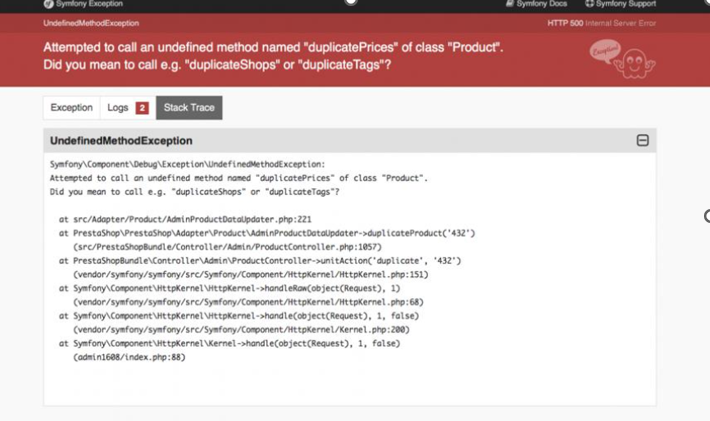
The usual causes:
- Incompatible module code
- PHP errors
- Broken overrides
- Symfony service problems
- Database errors
- Incorrect server configuration
Find the real exception before you touch anything. Reinstalling modules in sequence and hoping one sticks is how a two-hour job turns into two days.
4.3 PrestaShop modules not working
When several PrestaShop modules are not working, first work out the scope. Individual failures, or the whole Module Manager?
One payment method gone missing points at that module and the hooks it registers. A blank module page is a different animal, PrestaShop instantiates every installed module to build that list, so one module whose main class throws takes out the whole screen and names none of it.
4.4 Checkout or payment has stopped working
Checkout gets extra scrutiny because one order can pass through half a dozen modules on its way out.
Separate modules for the checkout itself, payment, shipping, fraud checks, order processing, confirmation emails, break one and the order process breaks with it, often at a step nobody thought to check.
A checkout page that loads proves nothing. Place a real order: cart, shipping choice, payment, invoice, confirmation email, then open the order in the back office and confirm it looks right there too.
5.0 How to Perform a PrestaShop Module Compatibility Check
A PrestaShop module compatibility check answers one question, and it isn’t “does this install?”
Will this module keep doing its actual job on the target version?
Start with the developer’s documentation and note the supported PrestaShop and PHP versions. Then check what’s specific to your store, because nobody else’s compatibility notes cover your theme and your other thirty modules.
| Check | What to look for |
| PrestaShop version | Exact supported target version |
| PHP | Supported PHP range |
| Hooks | Required hooks still available |
| Overrides | Core classes modified by the module |
| Dependencies | Required libraries and services |
| Theme | Templates, JavaScript and CSS dependencies |
| Database | Module tables and upgrade scripts |
| Controllers | Custom front/admin controllers |
| APIs | Deprecated or removed methods |
Keep it in a spreadsheet. Fill it in and upgrade risk stops being a vague worry and becomes three buckets: needs updating, needs testing, blocks the upgrade.
Then look at what’s sitting in the override folder:
find override -type f -name '*.php' | grep -v index.php
Don’t clear it out because the files look old. Trace each one back to whatever put it there, some are load-bearing.
6.0 How to Troubleshoot a PrestaShop Module Conflict
Once the store is down, change one thing at a time. Change five, watch the error vanish, and you’ve learned nothing, you won’t know which fix mattered.
6.1 Start with the actual error
Enable debug mode on staging, or inside a maintenance window you control, then switch it back off, it leaks paths and queries to anyone browsing.
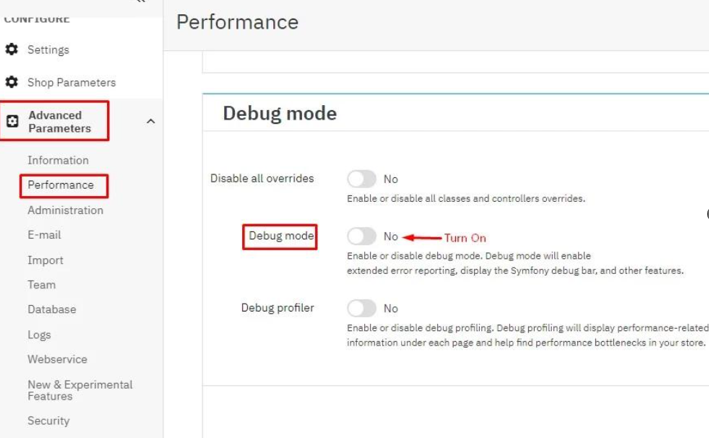
A real error message hands you a file path, a class name, a line number. That’s usually the whole investigation. Messages like:
- Class not found
- Call to undefined method
- TypeError
- Service not found
- Database exception
are worth far more than the browser’s generic error page.
And when the path reads /modules/examplemodule/, you’re done looking. Go there.
6.2 Check the logs
Two places, minimum: the server’s PHP error log and PrestaShop’s own logs under var/logs/.
The PHP log earns its keep when the request dies before PrestaShop can render its own error page, precisely the blank-page scenario, so check it early rather than last. If the back office still opens, its log viewer helps too.
6.3 Isolate modules
When the trace names nothing useful, isolate in groups rather than one at a time. Switch off half your third-party modules, retest, then split whichever half still fails. On a store with forty of them that’s roughly six tests instead of forty, the difference between a coffee break and a whole afternoon.
Clear the cache after every change and repeat. PrestaShop caches the compiled container, the class index and the templates, and a stale cache will cheerfully serve you the broken state long after you’ve fixed it.
6.4 Check the override directory
If disabling the module changes nothing, go back to /override/.
The module can sit there inactive while one of its override files loads on every request. That’s the mechanism behind most “it can’t be that module” conversations.
Read the file, trace it to its source, then decide whether it can go.
7.0 How to Fix a PrestaShop Module Conflict
Once you know the cause, take the smallest fix that resolves it.
Updated release from the developer? Test that first. It’s the cleanest path by a wide margin, and the module keeps its own tables and settings.
Old override at fault? Work out whether anyone still needs what it does. Obsolete ones can go once you’ve verified that properly. Ones still earning their place need rewriting against the new core, check the parent method’s signature and return type before you start typing.
Custom modules mean replacing deprecated calls by hand. If one codebase has to run across several PrestaShop generations, branching on the version works, but keep those branches few and test each path, version forks breed faster than anyone plans for.
One thing to avoid: uninstalling a module the moment it throws. Uninstall routines drop tables and wipe configuration, and a store can lose data it still needed. Disable it or reset it instead, and save the uninstall for when the module is genuinely leaving.
Back up files and database before any significant change. Every time.
And when several business-critical modules have no compatible release at all, restoring the pre-upgrade environment is the better call. Trade on the old version and book the upgrade properly, rather than rebuilding a live store under pressure.
8.0 PrestaShop Upgrade Checklist
Work through this before production:
- List every installed and disabled module.
- Identify custom modules and modifications.
- Review the /override/ directory.
- Confirm the exact target PrestaShop version.
- Check module compatibility with that version.
- Check PHP compatibility.
- Clone the production store to staging.
- Perform the upgrade on staging first.
- Test payment, shipping and checkout.
- Place a complete test order.
- Check the front office and back office.
- Verify emails and external integrations.
- Test the backup restoration process.
- Upgrade production only once staging is stable.
Number five is where most upgrades quietly go wrong, so let’s be blunt: a module that installs without an error hasn’t passed a compatibility test. It’s passed a spelling test. Test the functionality.
9.0 Final Thoughts
Upgrades get dramatically easier once you treat module compatibility as part of the upgrade rather than something to sort out afterwards.
Moving from PrestaShop 1.7 to 8, 1.7 to 9, or 8 to 9? Review the modules, PHP version, theme, overrides and custom code before production sees a single change.
If something does break, start with the error and the logs. Name the module responsible before you disable or uninstall anything. Nine times out of ten the answer is an updated module release, or an override that should have been retired two versions back.
The upgrade is rarely the mistake. Upgrading without knowing what the store depends on is and an hour on a PrestaShop upgrade compatibility check beforehand saves a great deal of troubleshooting after, plus the outage that usually comes with it.
This was the complete guide to fixing the module errors after upgrading to prestashop 1.7 to Prestashop 8.x, Prestashop 8.x to PrestaShop 9.x or Prestashop 1.7 to Prestashop 9.x . At Knowband, we specialise in Prestashop, OpenCart, Shopify, WooCommerce plugins, website customisation, and iOS and Android App development to help your store perform at its best. Need expert assistance? Reach out to us at [email protected] or the Knowband helpdesk.

)